How to Use NFC Tags and QR Codes to Organize Storage Boxes
Organizing storage boxes does not need to rely on guessing, faded labels, or opening every bin. With BoxQR, you can combine QR codes and NFC tags so you can scan or tap a box and instantly see what is inside.
QR codes vs NFC tags
QR codes work with any phone camera and require no setup. NFC tags let you tap your phone to open the box page with no camera. Best practice is to use both on the same box so anyone can access it.
Step 1: Create your box in BoxQR
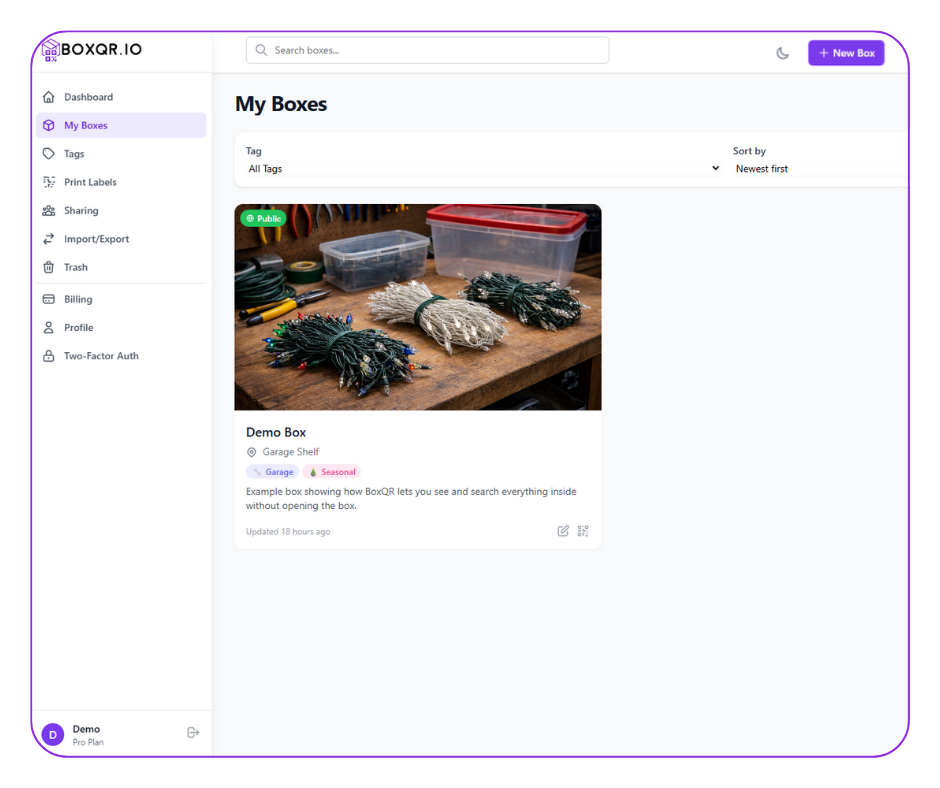
Create a box, add your item list, and upload photos. Each box has its own public page that you can open by scan or tap.
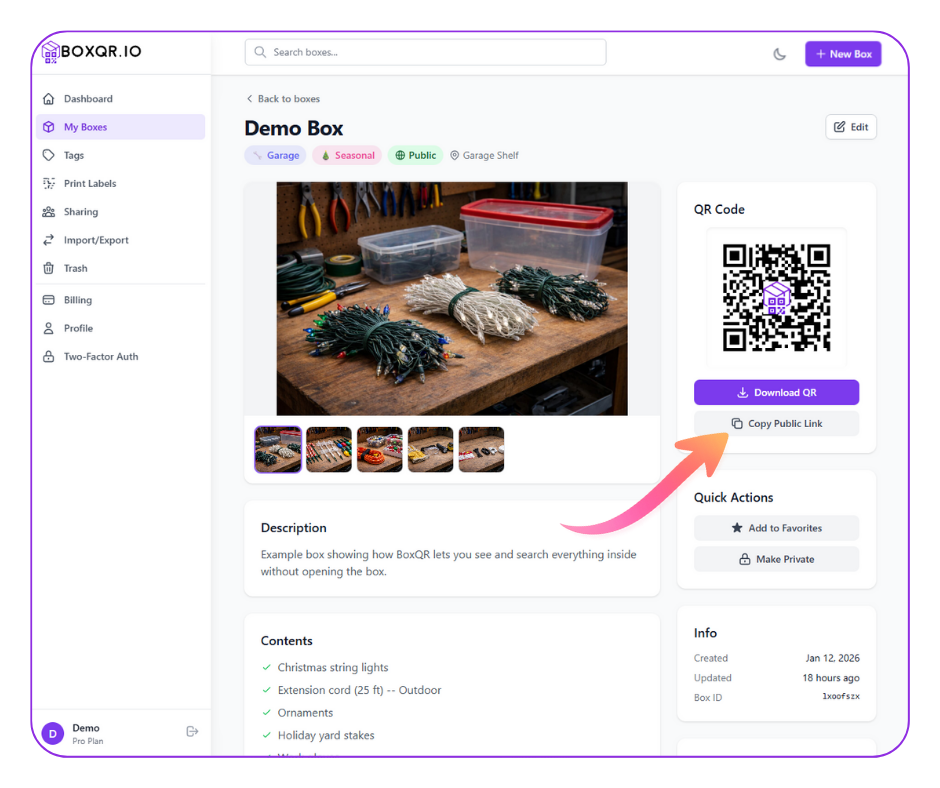
Step 2: Copy your box public link
After a box is created you can log in. Go to Dashboard → My Boxes → Choose box. Under the QR, click Copy Link or Copy Public Link depending on your box settings.
This link is what you will use for both QR labels and NFC tags.
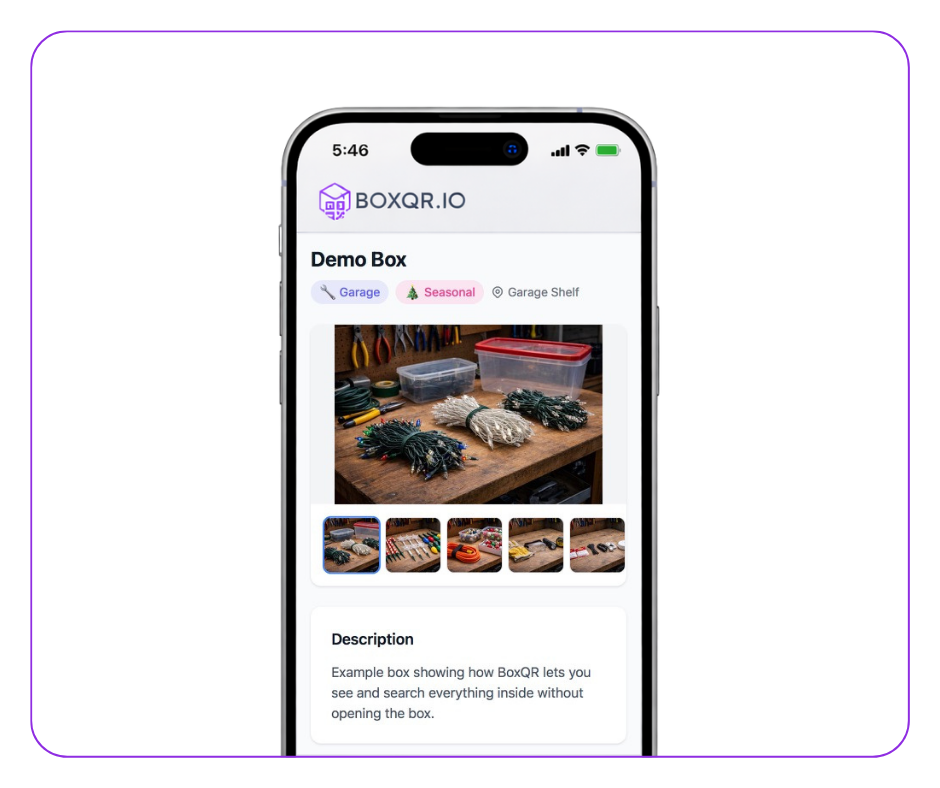
Step 3: QR labels with BoxQR
Print your QR labels, attach them to the outside of your box, then scan with any phone camera to view your box contents instantly.
- Place labels on a flat surface.
- Use water-resistant labels if the box will be in a garage, attic, or storage unit.
- Keep the label clean and unwrinkled for fast scans.
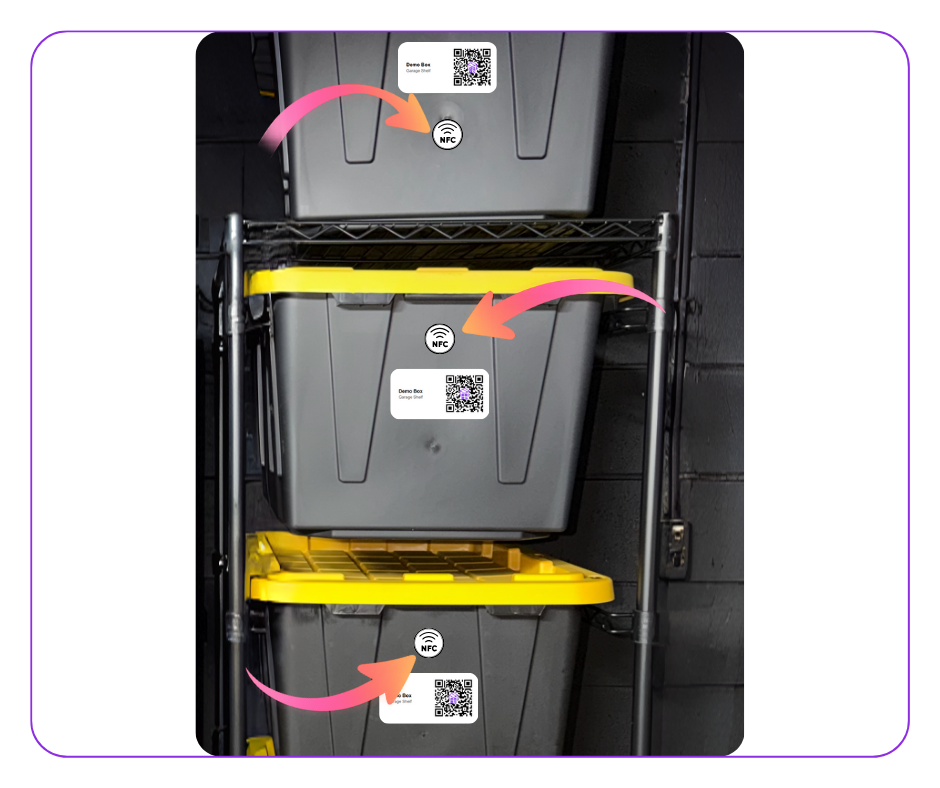
Step 4: Add NFC tags for tap-to-open
NFC tags are perfect when you want the fastest possible experience. Tap your phone on the tag and your BoxQR page opens instantly.
For storage, use durable, weather-resistant NFC tags:
On Amazon
Step 5: Program your NFC tags (recommended tool)
We recommend NFC Tools by wakdev. It is a simple app for writing a website link to an NFC tag.
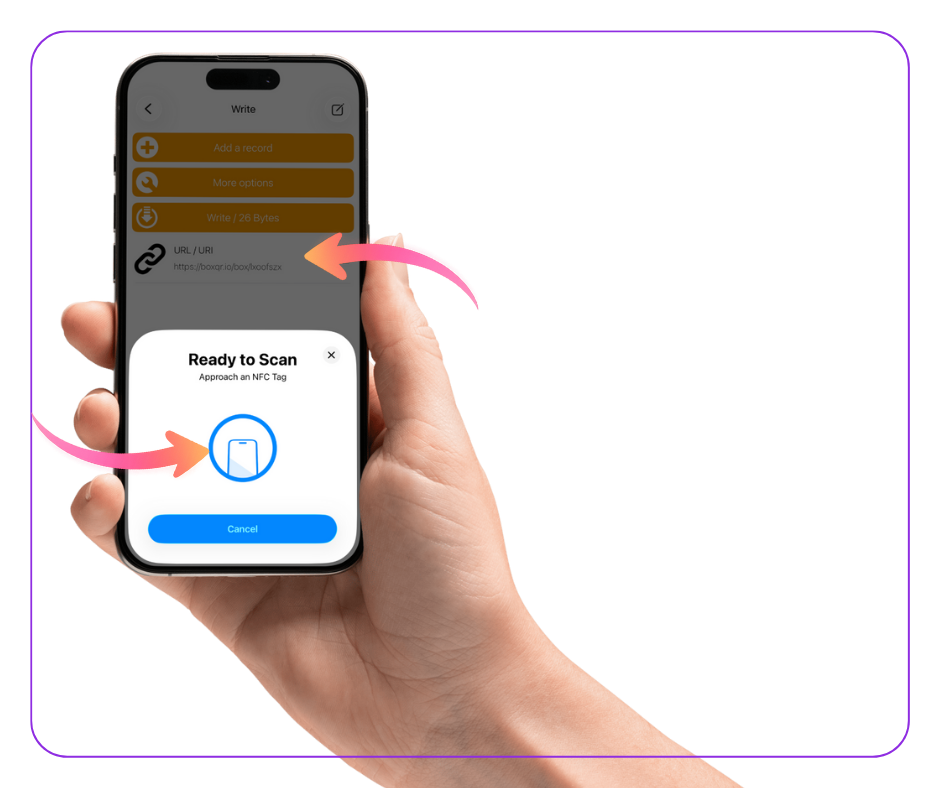
Write your BoxQR link to the tag
- Open NFC Tools.
- Go to the Write tab.
- Tap Add a record.
- Select URL / URI.
- Paste your BoxQR public link and tap Validate.
- Tap Write, then hold your phone to the NFC tag until it confirms success.
Optional: lock the tag after testing
If you want to prevent changes later, you can lock the tag. In NFC Tools, go to Other → Lock a tag. Locking is permanent, so only do this after you confirm everything works.
Placement and durability tips
- Place NFC tags on a flat surface and avoid bending them.
- Do not mount tags directly on metal unless the tag is rated for on-metal use.
- Keep QR labels clean and unwrinkled for fast scanning.
- If you use both, place the NFC tag next to the QR label so anyone can choose scan or tap.